Getting started
NimbusWiz works through a six-stage pipeline. This page walks you through the interface so you can move through that pipeline with confidence.
First-time setup
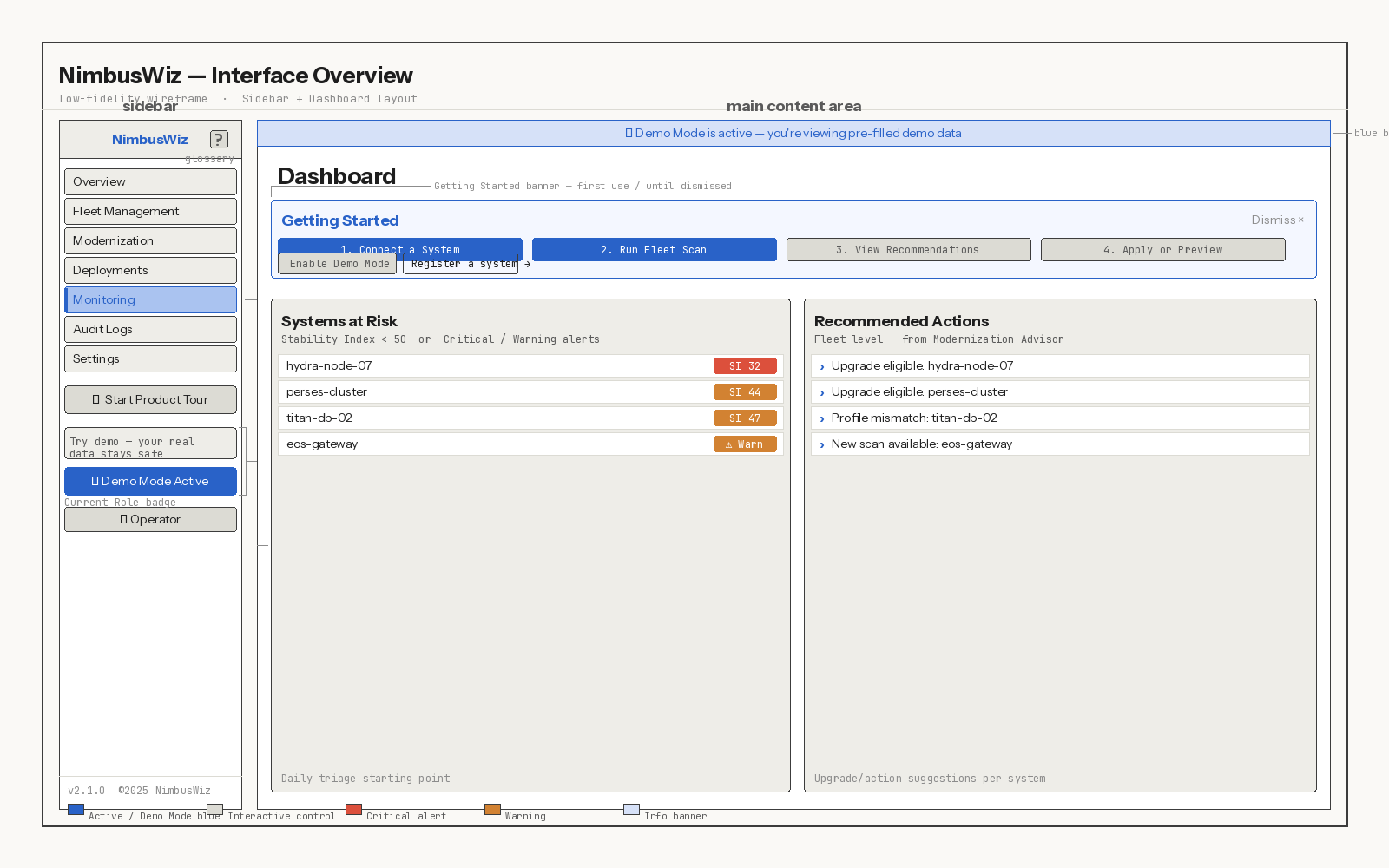
When you open NimbusWiz, a Getting Started banner appears on the Dashboard. It tracks your progress through the pipeline so you can see what you've learned about the system at each stage:
- Connect a System: Register a system so NimbusWiz can start learning about it.
- Run Fleet Scan: NimbusWiz scans the system's dependencies and behavioral patterns to understand its current state.
- View Recommendations: Based on the scan, NimbusWiz recommends a specific path forward for this system.
- Apply or Preview: Simulate the change to confirm it's safe, then apply it or continue exploring.
You can dismiss the banner at any time and come back to it later. The banner reappears each session until you've completed all four stages.
The banner shows different actions based on Demo Mode status:
- Demo Mode off: A button to enable Demo Mode, and a Register a system link to Fleet Management.
- Demo Mode on: A View Recommendations link to the Modernization Advisor, an Explore Demo Fleet link to Fleet Management, and a Switch to Real Data button.
To take an interactive tour of the platform, select Start Product Tour at the bottom of the sidebar. The tour is available to all roles and covers the core pages of NimbusWiz.
The NimbusWiz interface
NimbusWiz has two main areas: the sidebar and the main content area.
Glossary
To open the in-app Glossary, select the ? icon in the sidebar header. You can open it from any screen without losing your place.
Three terms worth knowing before you start the pipeline:
- Quirk Intelligence: NimbusWiz's capability for learning system-specific behavioral patterns over time, for example latency spikes under load or metric drift during extended operation. These patterns feed into upgrade recommendations.
- Flight Profile: Your operational priority for a system: Performance-focused, Stability-focused, or Efficiency-focused. The Modernization Advisor uses it as one of three inputs when generating a recommendation.
- Stability Index: A 0 to 100 score reflecting system reliability and uptime consistency. The core health metric throughout the pipeline.
The full glossary is on the Reference page.
Skip to main content
To skip the sidebar and jump directly to the main content area, press Tab to reveal the Skip to main content link at the top of the page. This is an accessibility feature for keyboard navigation.
Understand your role
You have one of three roles. Your role appears in the Current Role badge at the bottom of the sidebar.
| Role | What you can do |
|---|---|
| Viewer | Read-only access to all screens and data. Can't run scans, apply upgrades, trigger deployments, or change any settings. |
| Operator | All Viewer access, plus: run scans, apply upgrade profiles, manage deployments, create and manage automation pipelines, and use the Developer Hub. |
| Admin | All Operator access, plus: manage users and roles, generate and revoke API keys, configure integrations and webhooks, access and export Audit Logs, and change organization settings. |
To request a role change, contact your NimbusWiz administrator.
Viewers can't register systems, run scans, or trigger deployments. If you can't see an action button, check your Current Role badge and contact your admin if you need a role change.
Demo Mode
Demo Mode pre-loads NimbusWiz with realistic data: registered systems, scan results, recommendations, deployment history, and monitoring metrics. You can walk through the entire pipeline without affecting your real systems.
Use Demo Mode when you:
- Need to understand how the pipeline works before you register a real system.
- Want to train new team members without exposing live system data.
- Are demonstrating NimbusWiz to stakeholders and want to show a complete end-to-end workflow.
To enable it, select the Demo Mode button in the sidebar. When active, the button turns blue and shows "● Demo Mode Active."
Following this guide end to end? Enable Demo Mode before you begin. NimbusWiz is a high-fidelity prototype: the core modernization pipeline is fully interactive, but Create Pipeline, Run Scan, and Export Logs aren't yet functional. Demo Mode pre-loads data so you can follow every stage of the pipeline. Each page calls out where prototype limitations apply.
Next step
To begin working with NimbusWiz, see Register a system for a step-by-step walkthrough.